![logo.png]](https://support.hrcloud.com/hs-fs/hubfs/logo.png?height=40&name=logo.png)
- Ask your Account manager to enable Axomo integration for you.
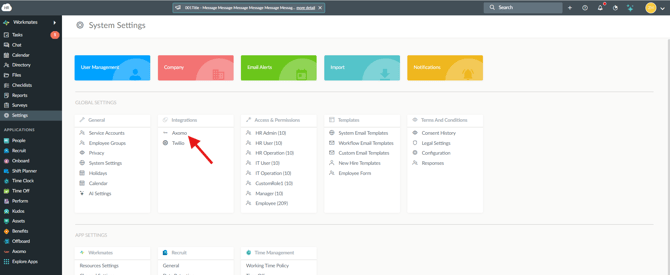
- Log in to HR Cloud (HR Admin) and go to Settings.
- There you will find an option for Axomo in the Integrations section
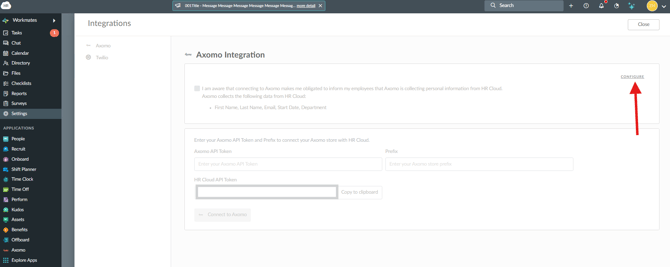
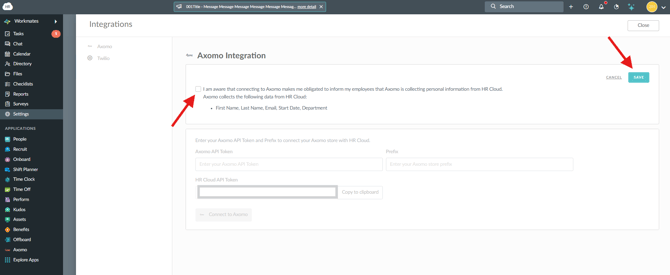
Now you need to copy a few pieces of information from Axomo to HR Cloud and from HR Cloud to Axomo:
-
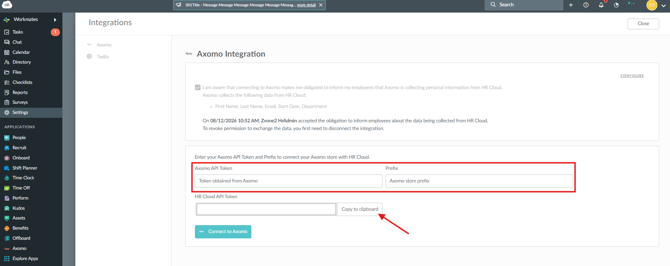
- Ask your Axomo manager to provide you with the Axomo API Token and Prefix and enter them into the corresponding fields
- Copy the HR Cloud API Token and save it for future use.
Note: Do this before connecting because it will not be visible afterwards. - Ask your HR Cloud Account manager for your HR Cloud account code and save that as well for future use
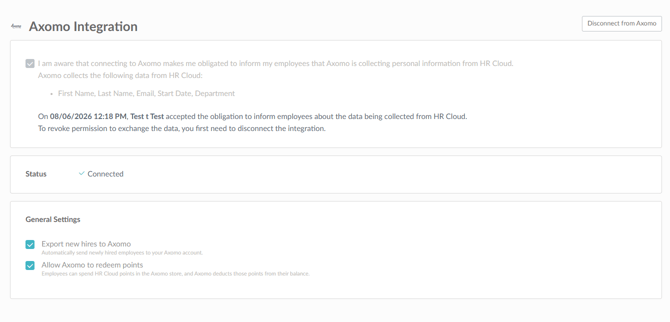
-
- Export new hires to Axomo - Automatically send newly hired employees to your Axomo account.
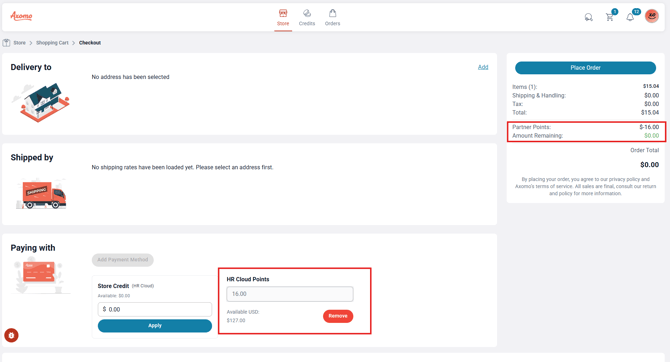
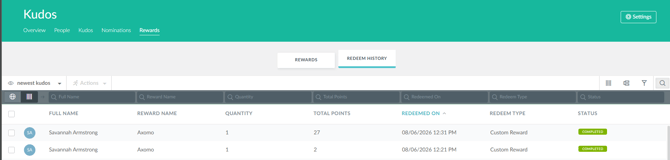
- Allow Axomo to redeem points - Employees can spend HR Cloud points in the Axomo store, and Axomo deducts those points from their balance.
Go to your Axomo marketplace (/admin/marketplace/ eg. https://portal.axomo.com/x/hr-cloud-sandbox/admin/marketplace/ - link differs depending on your account and Axomo prefix), find Workmates by HR Cloud Add-on, and install it.
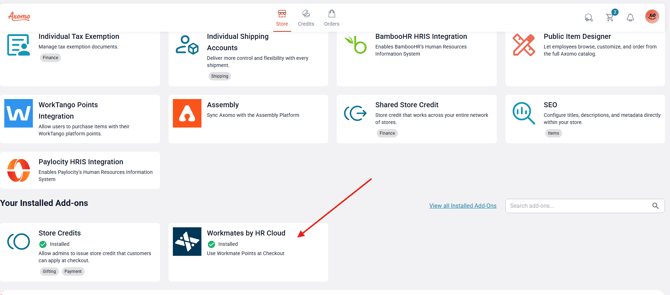
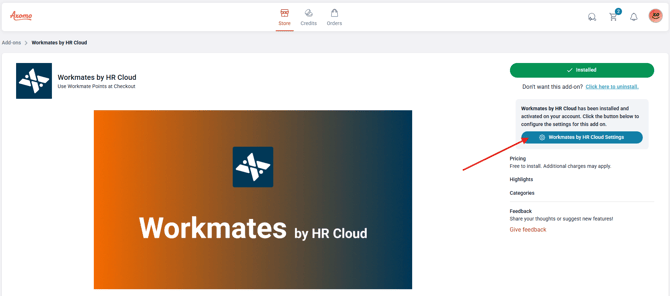
Enter the add-on and click on Workmates by HR Cloud Settings
Here you can enter the information you got from HR Cloud: the HR Cloud account code as the Store identifier and the API token you copied from HR Cloud Axomo Settings.
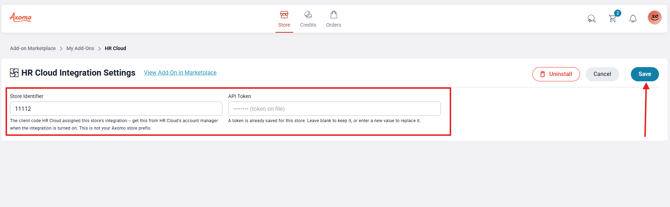
If employee export is enabled, adding a new employee in HR Cloud automatically adds a new user to Axomo as well. Existing users are connected using account email - if you have a user in HR Cloud and Axomo with the same email, our systems will recognise them and establish a connection.
AXOMO + KUDOS
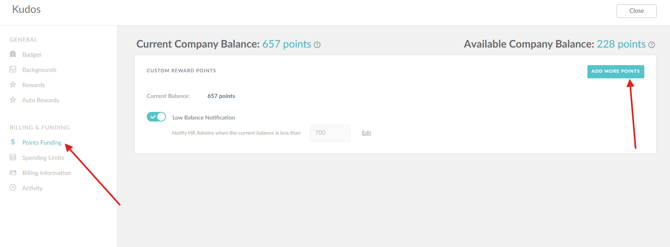
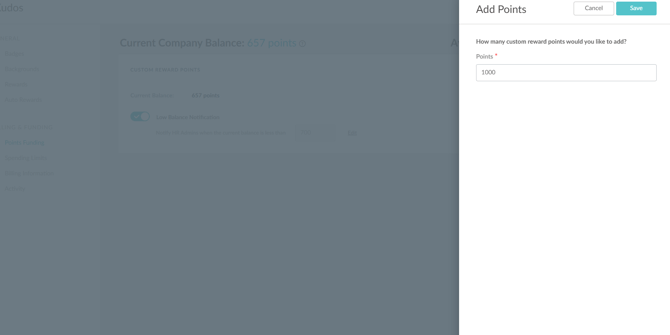
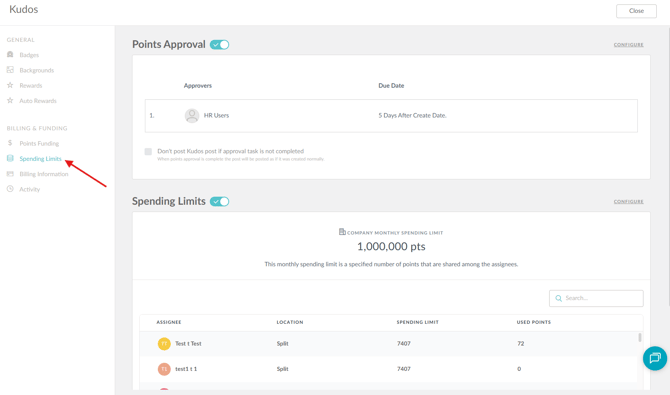
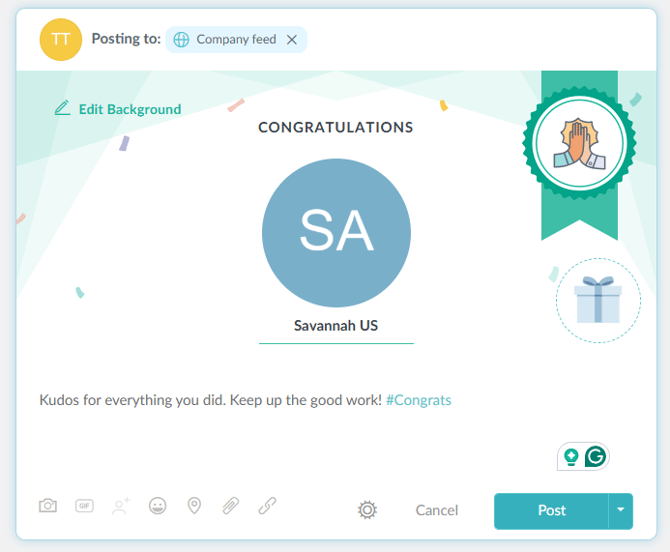
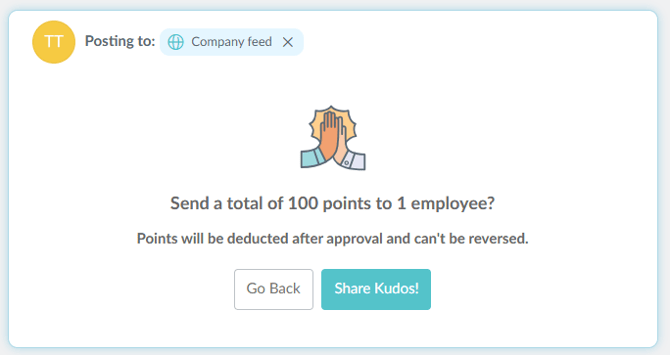
- Axomo uses HR Cloud Kudos Points to determine the size of the purchase you allow your employees to make. In order to use points, you first need to top up your HR Cloud balances. These balances are added just to control the point distribution and the total amount you are ready to spend. No real purchases are made, and no money is spent until the points are assigned to the employee and they use those points to place an order in Axomo.
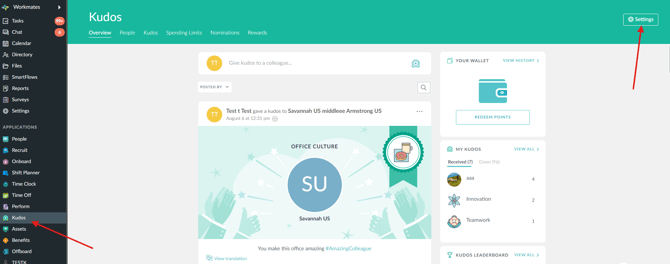
- Go to the Kudos Application using the HR Admin account and click on Settings in the top right corner.