![logo.png]](https://support.hrcloud.com/hs-fs/hubfs/logo.png?height=40&name=logo.png)
For Admins and Hiring Managers: How to Create an Applicant Task
- Go to Recruit and open the Applicant Profile.
- Select the Tasks tab.
- Click on the + button to add a Task.
- Enter the task details:
Task Name
Due Date
Description - (Optional) Configure task settings:
Upload Required – applicant must upload a file to submit.
Task Needs Review – submission must be reviewed before being marked completed. - Click Save.
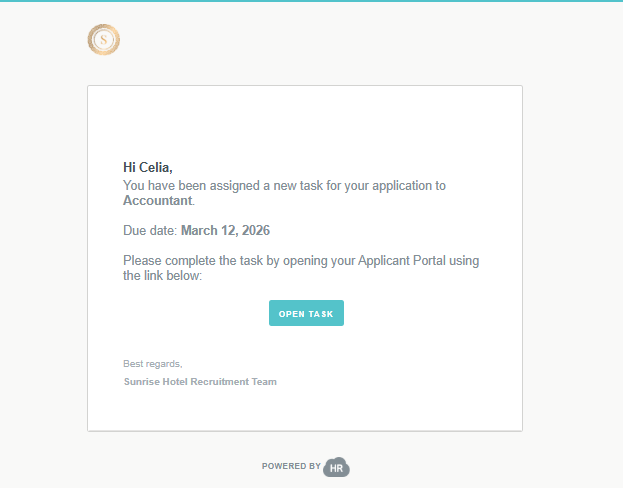
The task is assigned immediately, and the applicant receives an email notification with a link to the task.
Recruiters can later open the task from the Tasks tab to review submissions, update the status, or add comments. If a review is required, you can mark a task as Completed or mark it as Back to Incomplete
For Applicants: How to Access and Complete a Task
Open the email notification and click the Open Task link.
-
You will be asked to enter your e-mail, after which you will receive a 6-digit code to your email address to enter
-
Select the task to open it.
-
Review the instructions, complete any required fields, and upload documents if requested.
-
Click Complete to submit the task.
After submission, your Recuriters will receive a notification regarding the completion of your task and the task status updates to Completed or In Review (if recruiter review is required).
Notes
- Applicants receive an email notification when a task is assigned.
- Tasks remain available even after the due date, and submissions are still allowed.
- Recruiters and applicants can communicate through comments within the task.
- Uploaded files are automatically stored in the applicant’s Documents section.
If an applicant’s status becomes Hired or Not Considered, tasks remain visible but can no longer be submitted or modified.