![logo.png]](https://support.hrcloud.com/hs-fs/hubfs/logo.png?height=40&name=logo.png)
The integration has three parts:
- Job Sync – jobs you mark for Indeed are sent to Indeed when you save them, updated whenever you edit them, and taken down when you close them or turn Indeed off for the job.
- Indeed Apply – candidates apply on Indeed using their Indeed profile and resume, answer your job's questions there, and arrive in Recruit as applicants on that job with the status New.
- Disposition Sync – when you change the status of an Indeed applicant in Recruit, the update is sent back to Indeed, so the candidate's status matches in both places.
HR Cloud enables Indeed for your account, and you then turn the integration on yourself in System Settings.
Before you beginYou need the Indeed integration turned on for your account and jobs that meet Indeed's requirements.
- Indeed is enabled by HR Cloud. The integration is off by default. Ask your account manager to turn it on. Until then, the Indeed settings and the Indeed toggle on jobs are not visible.
- HR Admin access. HR Admins turn on the integration in System Settings and turn on Indeed for each job.
- A complete job location. Each job's location needs Country, State, City and Postal Code. Indeed does not accept jobs without a location, including remote jobs (see step 5). Indeed supports these countries.
- An Indeed-compatible Compensation Rate if the job has compensation: Hourly, Daily, Weekly, Monthly, Yearly, Mile or Shift. If you use ADP's Salary rate, turn on Map Salary Compensation Rate as Yearly in Indeed.
- Open job status. Only Open jobs are sent to Indeed. If you change a job to any other status (for example, On Hold), it is expired on Indeed. You can reopen the job later and it reopens on Indeed too, but if it was inactive for a longer time, Indeed may treat it as a new job.
- Ask HR Cloud to enable Indeed. Contact your account manager. Once it's on, an Indeed item appears in System Settings → Integrations.
- Open the Indeed settings. Go to System Settings → Integrations → Indeed.
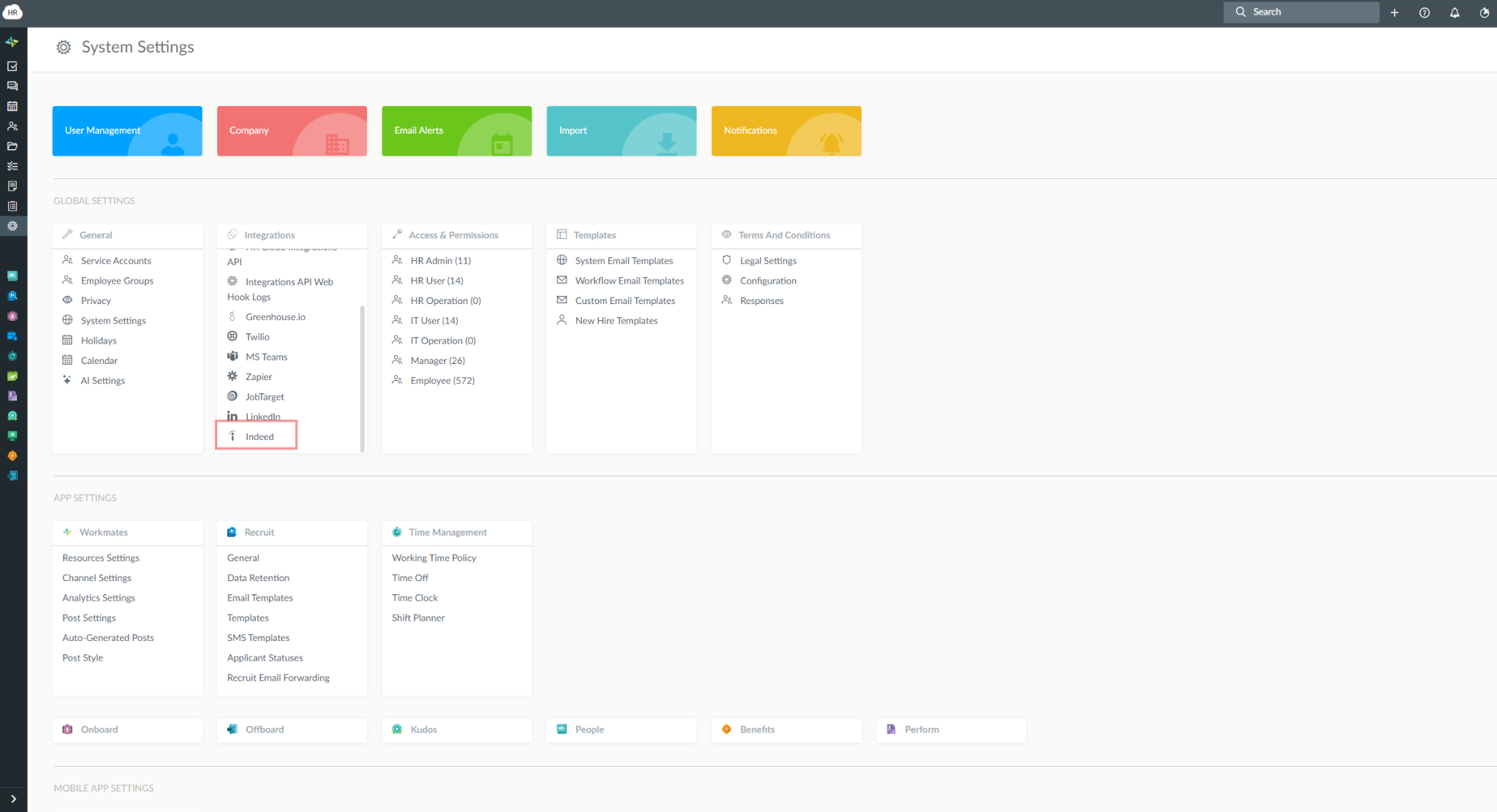
- Turn on Enable Indeed Integration. It is off by default, and the other Indeed settings stay disabled until you turn it on. Recruit then sends every job that has the Indeed toggle on to Indeed.
- Review the other Indeed settings. Indeed Apply, the Apply with Indeed button and Disposition Sync turn on by default
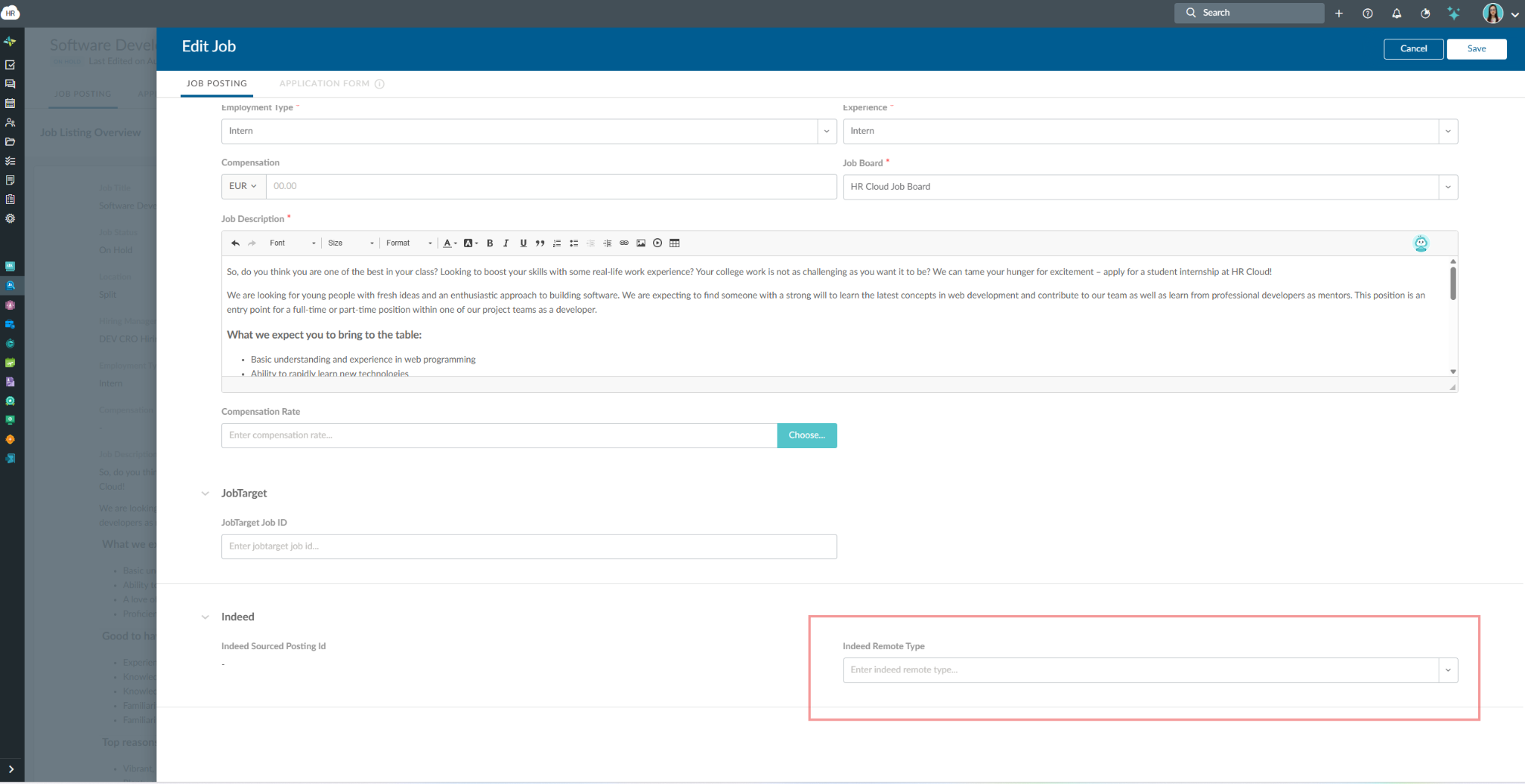
- Check job locations. In the People app, open the Locations tab, edit the location, enter the address, select the suggested address and save. For a remote job, use your headquarters or a central location as the address, and set Indeed Remote Type in the job details to Fully Remote or Hybrid Remote.
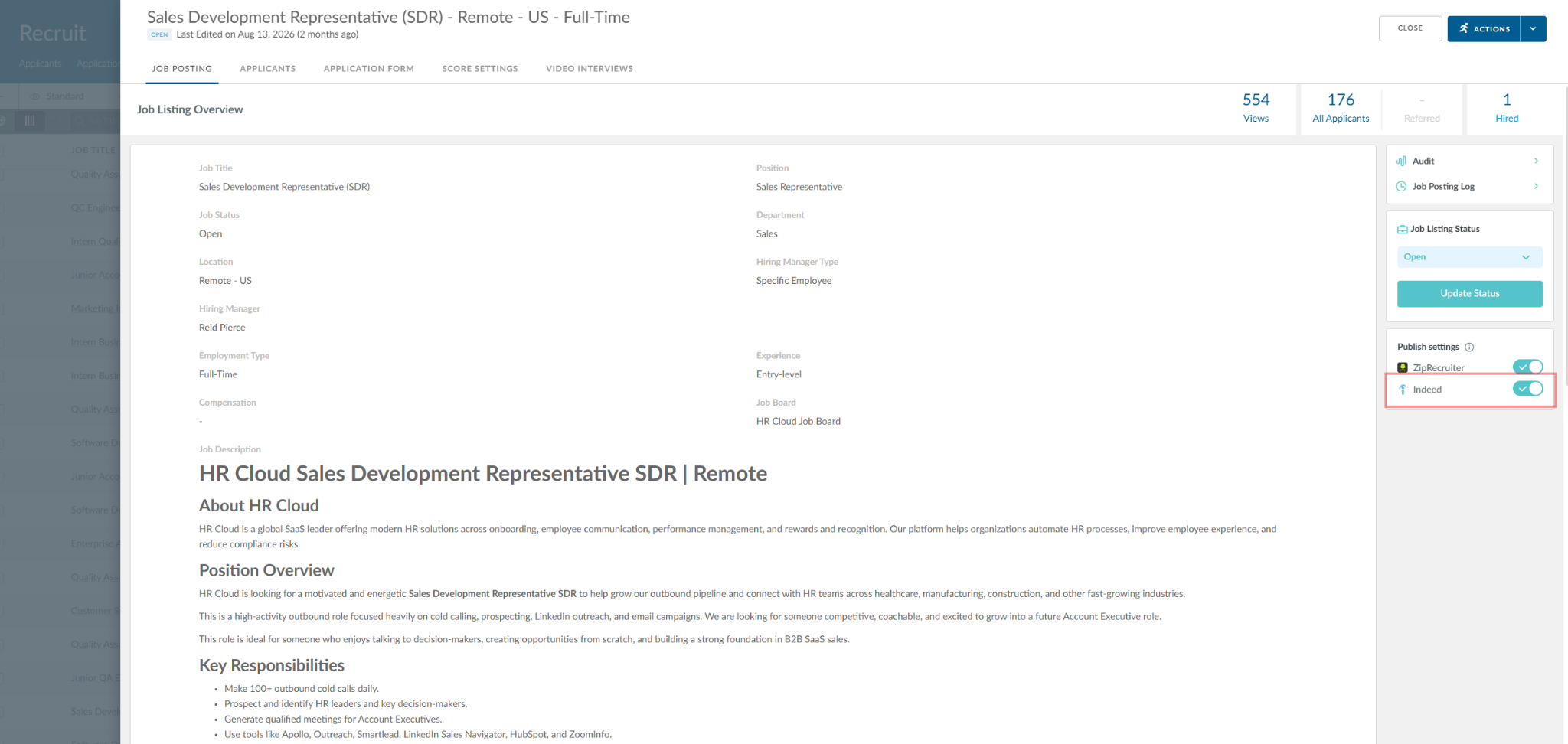
- Turn Indeed on for each job.
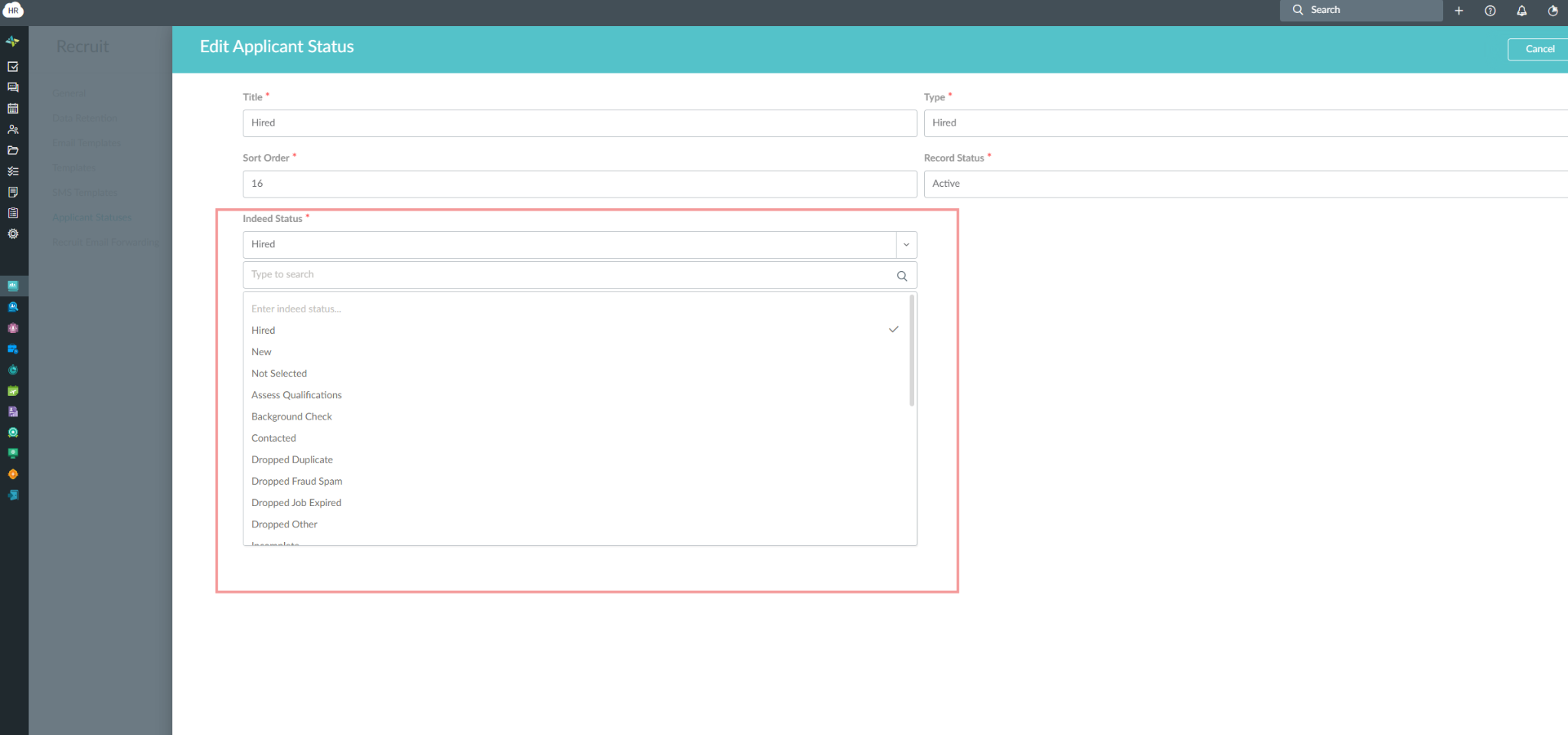
- Check how your applicant statuses map to Indeed.
Indeed settings in System Settings → Integrations → Indeed
|
Setting |
Default |
What it does |
|---|---|---|
|
Enable Indeed Integration |
Off |
Turns the Indeed integration on for your account. Turning it on sends all jobs with the Indeed toggle on to Indeed; turning it off closes all your jobs on Indeed. |
|
Enable Indeed Apply |
On once Enable Indeed Integration is on |
Allows candidates to apply to your jobs directly using their Indeed profile and resume. |
|
Enable the Apply with Indeed (AWI) button on the Recruit Jobs |
On once Enable Indeed Integration is on |
Displays the "Apply with Indeed" button on your Recruit job postings, letting candidates apply using their Indeed account without leaving our site. Available only when Enable Indeed Apply is on. |
|
Enable Indeed Disposition Sync |
On once Enable Indeed Integration is on |
Automatically sends candidate status updates (such as hired or rejected) back to Indeed to keep applicant records in sync across both platforms. |
|
Map Salary Compensation Rate as Yearly in Indeed |
Off |
If enabled, Salary Compensation Rate will be sent as Yearly to Indeed. Useful if you use ADP's Salary compensation rate. |
If you see a disabled Indeed toggle on a job, hover over it to see what's missing:
- To enable posting through Indeed, Country, State, City, and Postal Code are required.
- To enable posting through Indeed, a Compensation Rate compatible with Indeed is required.
A common cause of the second message: the job has a compensation amount but no Compensation Rate. For example, if you enter 17 USD, also set the Compensation Rate to Hourly.
What syncsJobs go from Recruit to Indeed, applicants come from Indeed to Recruit, and applicant statuses go back to Indeed.
Jobs (Recruit → Indeed)
|
Recruit job |
Indeed |
|---|---|
|
Job Title |
Title |
|
Description (rich text formatting is kept) |
Description |
|
Compensation, Maximum Compensation, Compensation Rate |
Salary (minimum, maximum, period) |
|
Location – Country, City, State, Postal Code |
Location |
|
Employment Type |
Job type (Permanent, Part-time, Third-party contract, Project contract, Fixed term, Internship, New graduate, Volunteer) |
|
Minimum Experience |
Experience |
|
Indeed Remote Type |
Remote type (Fully Remote, Hybrid Remote) |
|
First Published Date |
Date published |
|
Expiration Date |
Expiration date |
|
Job link on your Recruit job board |
Job URL |
|
Company name, website, email, phone and contact name (from your company settings, or from the job board if you use multiple job boards) |
Company and contact details |
|
Job questions |
Screening and demographic questions |
Employment types and compensation rates that don't match an Indeed value are not sent.
Job status
|
In Recruit |
On Indeed |
|---|---|
|
Open, Indeed toggle on |
Sent to Indeed, and updated each time you save the job |
|
Draft, On Hold, Filled, Canceled or a custom status |
Closed |
|
Indeed toggle turned off |
Closed |
When a job closes on Indeed, its Indeed applicants are marked Not selected on Indeed. Their statuses in Recruit don't change.
Questions
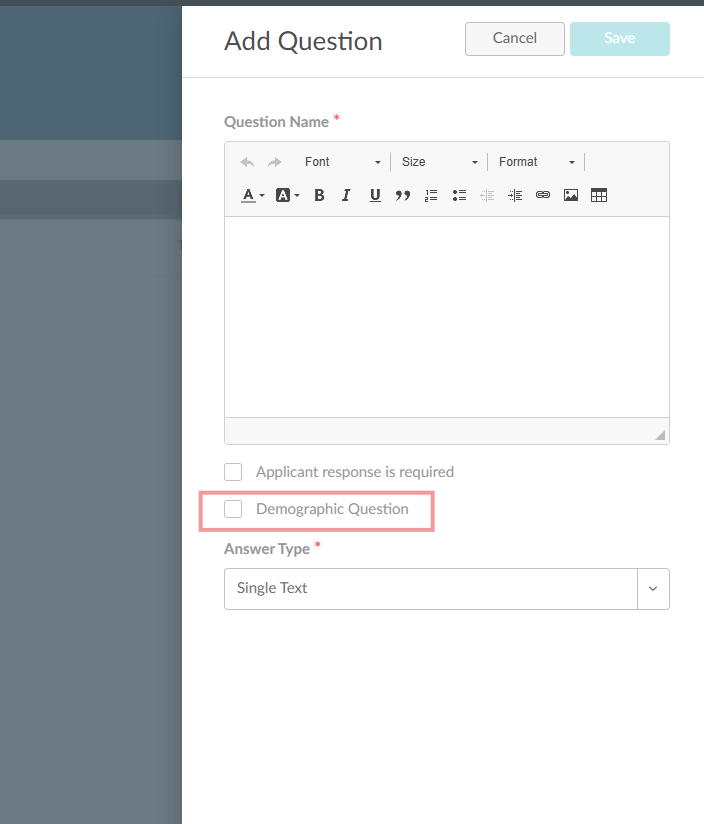
The questions on your job are shown to candidates on Indeed. Supported types: single text, radio buttons, checkboxes, dropdown and date. To send a question as a demographic question instead of a screening question, turn on Demographic Question for it in Recruit Questions.
Applicants (Indeed → Recruit)
|
Indeed |
Recruit applicant |
|---|---|
|
First name, last name, email |
First Name, Last Name, Email |
|
Phone number |
Phone |
|
Resume |
Resume file |
|
Cover letter |
Cover letter (saved as coverletter.txt) |
|
Location from the Indeed resume |
Address |
|
Skills from the Indeed resume |
Skills (if Skills are enabled) |
|
Links |
Facebook, Twitter, LinkedIn, Website |
|
Answers to job questions |
Question answers |
|
Indeed source (for example, Indeed Apply) |
Referrer source |
- New Indeed applicants get the status New.
- Phone, Resume and Cover Letter follow your application form: required on the form = required on Indeed, optional = optional, hidden = not asked.
- Fields hidden on your applicant form are not imported, even if Indeed sends them.
- Location and skills come only from an Indeed resume, not from an uploaded resume file.
- In Recruit → Reports → Applicant Sources, Indeed applicants show the exact Indeed source and are grouped under Indeed on the chart.
Applicant statuses (Recruit → Indeed)
Indeed applicants' statuses are sent to Indeed when the applicant is created, when you change their status, and when you change statuses in bulk.
These are the default mappings. You can change any of them in System Settings → Recruit → Applicant Statuses.
|
Recruit status |
Indeed status |
|---|---|
|
New |
NEW |
|
Phone Screened |
SCREEN |
|
Schedule Interview |
CONTACTED |
|
Interviewed |
INTERVIEW |
|
On Hold |
REVIEW |
|
Offer In Review |
REVIEW |
|
Offer Sent, Offer Viewed, Offer Signed |
OFFER_MADE |
|
Offer Expired, Offer Revoked |
NOT_SELECTED |
|
Not A Fit, Declined, Not Qualified |
NOT_SELECTED |
|
Hired Elsewhere |
WITHDRAWN |
|
Hired, Prehired |
HIRED |
|
Custom statuses |
UNABLE_TO_MAP (change it to the closest match) |
To take a job off Indeed, turn off its Indeed toggle under Publish Settings, or change its status from Open. The job is closed on Indeed. To take all jobs off Indeed, turn off Enable Indeed Integration in System Settings → Integrations → Indeed.
If a job doesn't sync, Recruit shows a message when you save it:
|
Message |
What to do |
|---|---|
|
You've reached Indeed request limit for now. Please wait a moment before trying again. |
Wait a moment and save the job again. |
|
There was a problem syncing this job to Indeed. Please review the following errors: … |
Fix the fields listed in the message and save the job again. |