![logo.png]](https://support.hrcloud.com/hs-fs/hubfs/logo.png?height=40&name=logo.png)
1. Schedule a Meeting
How to Schedule a Meeting
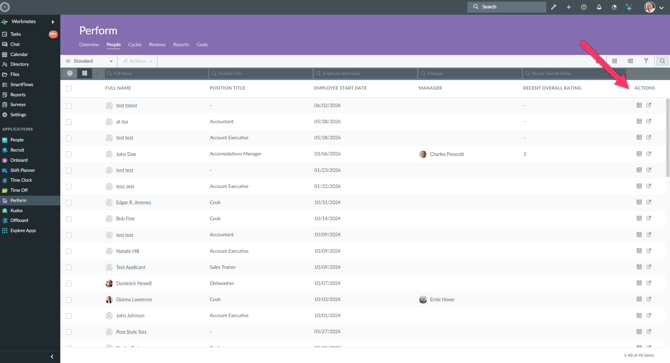
- Navigate to Perform > People.
- Locate the employee you would like to meet with.
- Click the Calendar icon in the Actions column.
- Complete the meeting details:
- Attendees
- Meeting Title
- Start Date and Time
- End Date and Time
- Time Zone
- Location
- Description
- (Optional) Enable:
- Meet via Zoom
- Meet via Microsoft Teams
- Click Save.
Notification Email
The meeting setup also includes a Notification Email tab where administrators can customize the meeting invitation sent to attendees.
2. Assign a goal
How to Assign a Goal
- Navigate to Perform > People.
- Locate the employee you want to assign a goal to.
- Click the Assign Goal action in the Actions column.
- Complete the goal details:
- Goal Name
- Goal Description
- Goal Type
- Start Date
- Due Date
- Progress Tracking Method
- Weight (if applicable)
- Click Save.
The goal is immediately assigned to the selected employee and becomes available within their Goals workspace.